Mastering Tabletop Designer
A professional reference for game asset production in Figma, optimized for high-performance print workflows.
First Launch
Tabletop Designer is built to handle the complexities of board game production. When you first launch the plugin, you'll be greeted by an empty state designed to guide you through creating your first **Asset Container**.
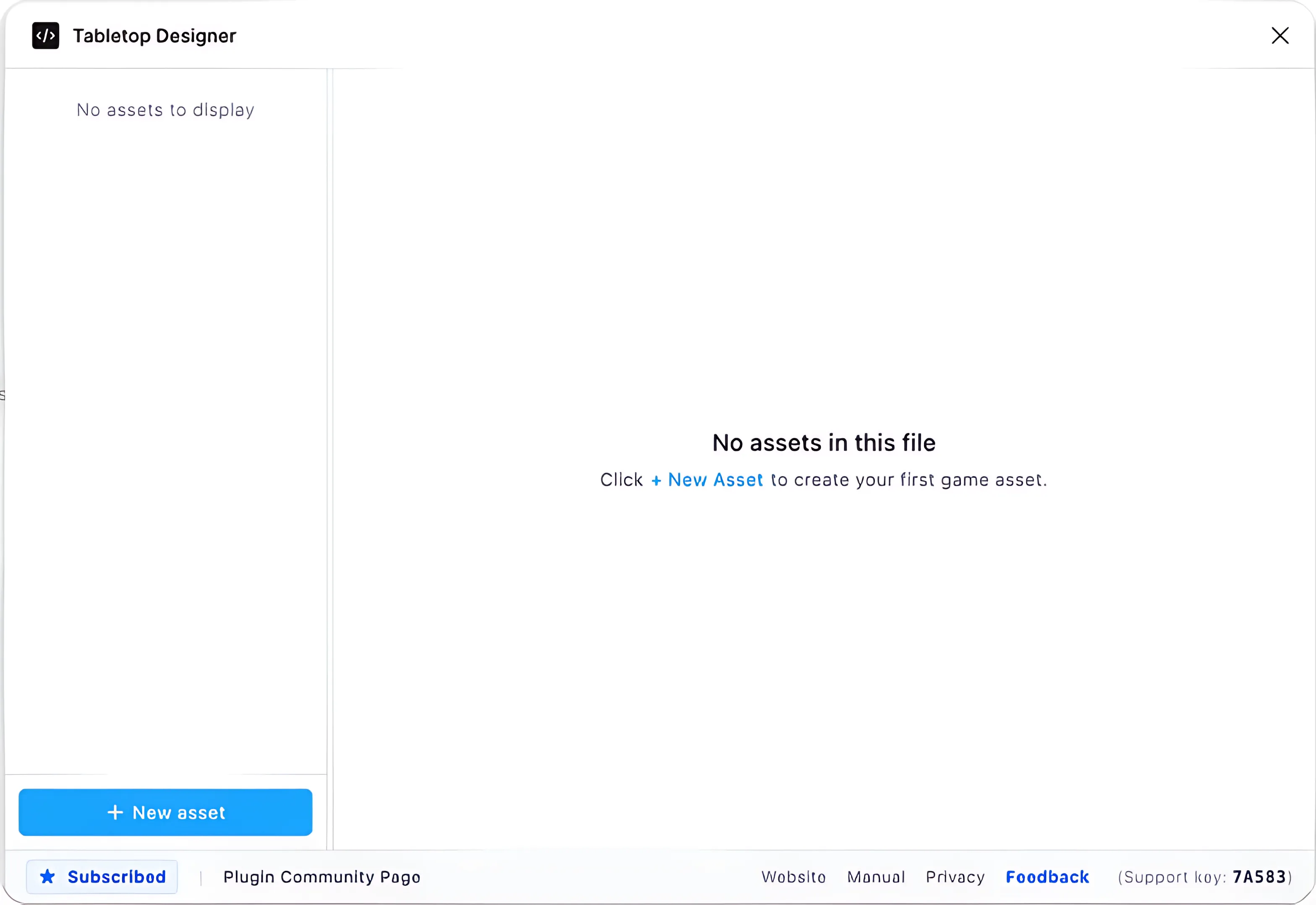
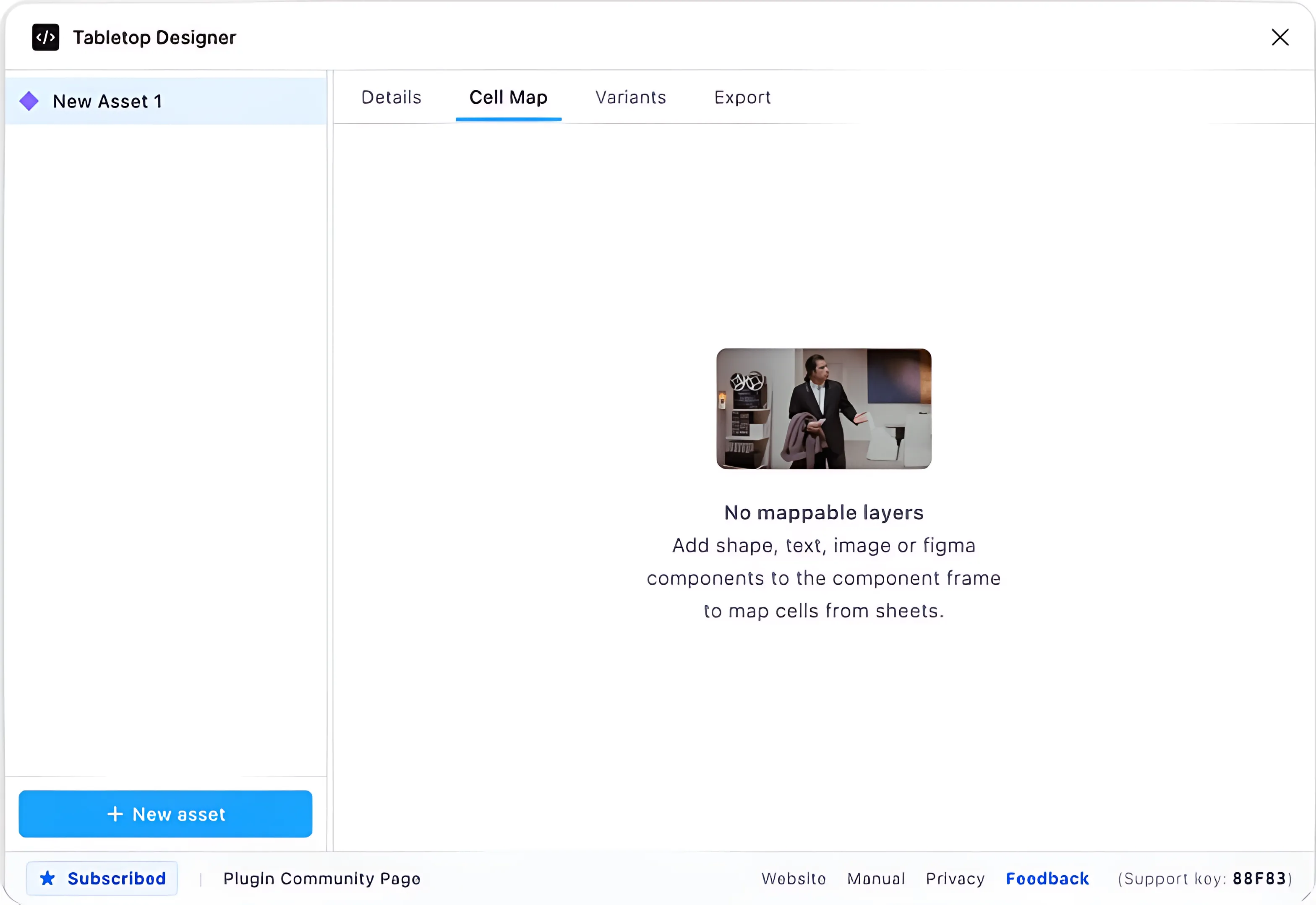
An **Asset** represents a physical product category—like a deck of cards, a sheet of tokens, or player boards. All settings (geometry, mapping, and variants) are saved at the Document level and remain persistent across sessions.
Creating Your First Asset
Define your physical specs in the **Details** tab. This is where your engineering-grade geometry begins.
Technical Specifications
- Physical Units: Choose between
mmandinches. Tabletop Designer calculates the precise pixel equivalent based on production-standard DPI targets. - Presets: Use industry-standard sizes like Poker Cards (63x88mm), Tarot, or Mini-Euro to instantly scaffold your design.
- Live Preview: As you change dimensions, the plugin provides a real-time risk assessment of your export scale.
Canvas & Geometry
Tabletop Designer generates a specialized **Figma Frame** with built-in production guides. These guides are non-printing but critical for successful factory output.
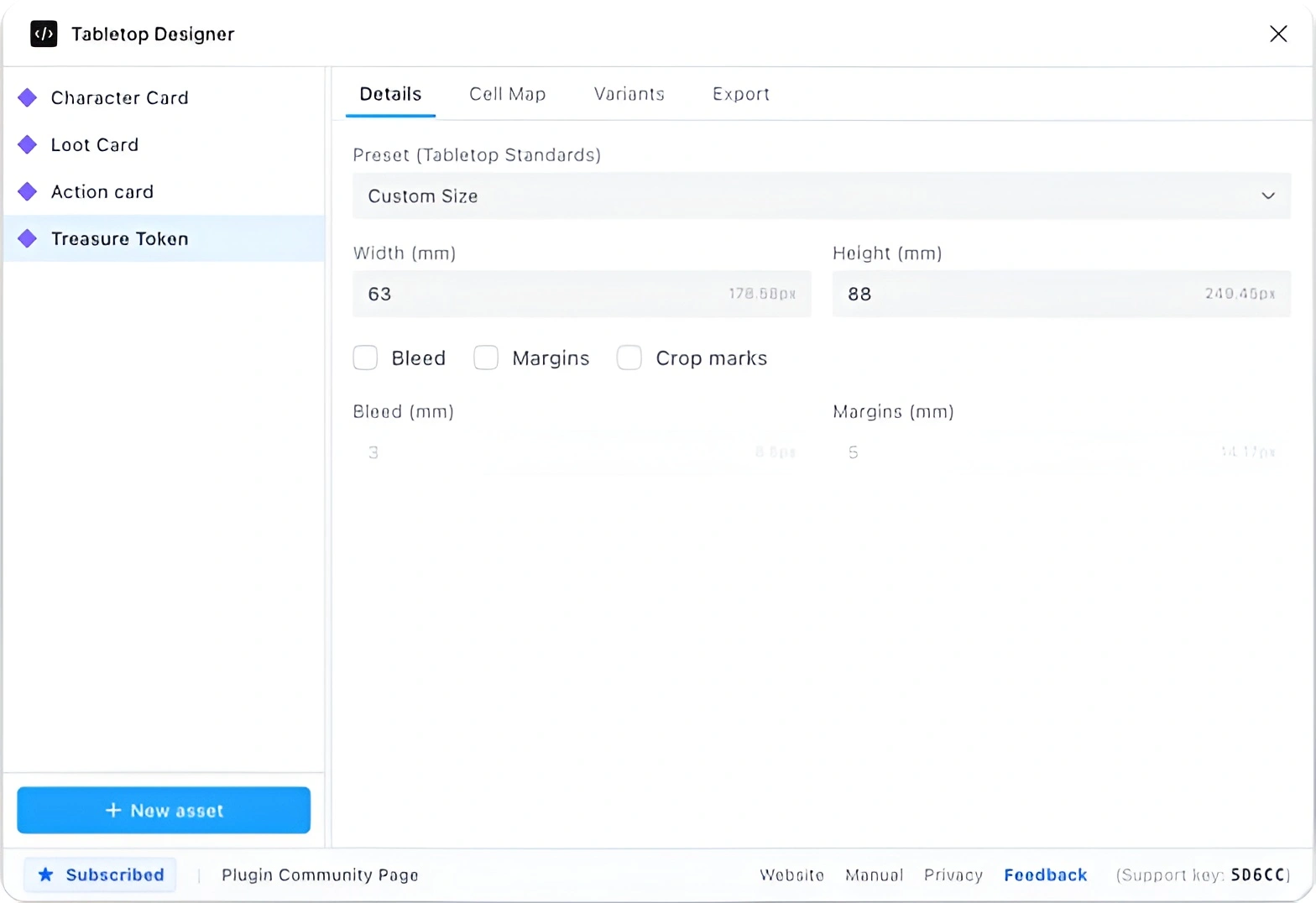
Print Safety Protocol
1. Bleed Area (The Outer Buffer)
Most professional printers require 3mm of bleed. This expands your design beyond the trim line to ensure no white edges appear if the cutting blade shifts.
2. Safe Margins (The Safe Zone)
Critical text and icons should live within the Safe Margins (typically 3-5mm inside the trim line) to avoid being lost during production.
3. Crop Marks
When exporting to PDF, Tabletop Designer automatically generates industry-standard corner marks to show the factory exactly where the trim lines are.
Data Mapping
Connect your design to external data using the **Cell Map** tab. We support two primary workflows: **Google Sheets** and **Local CSV**.
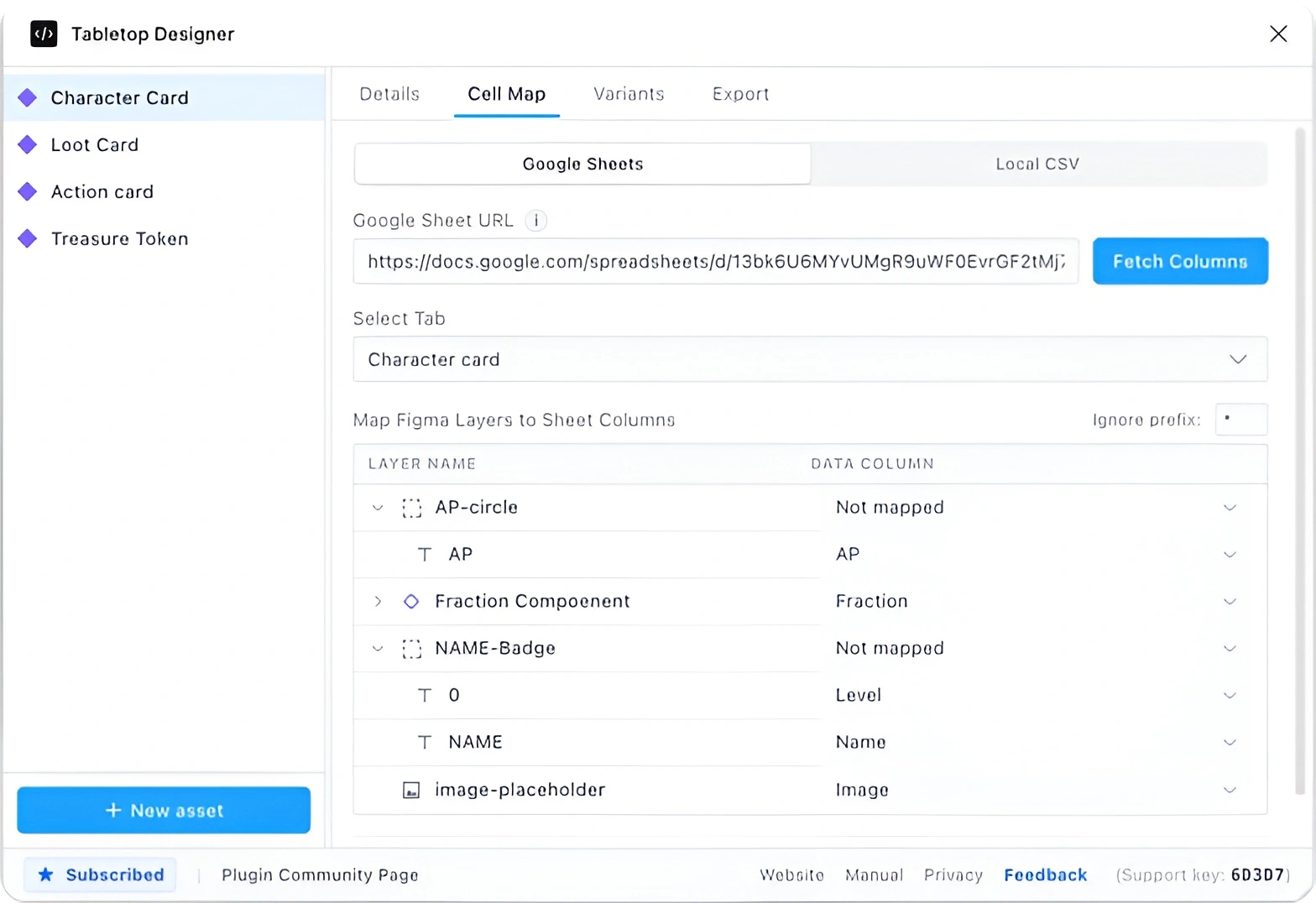
Supported Data Types
- Text Mapping: Direct injection of strings into text layers or variables.
- Image Mapping: Dynamic image replacement for fills. Supports direct links and Google Drive URLs.
- Visibility Control: Toggle layers ON/OFF based on a "TRUE/FALSE" or "1/0" value in your data.
- Variant Switching: If your layer is a Figma Component, you can map a column to switch between its variants automatically.
Variants & Synchronization
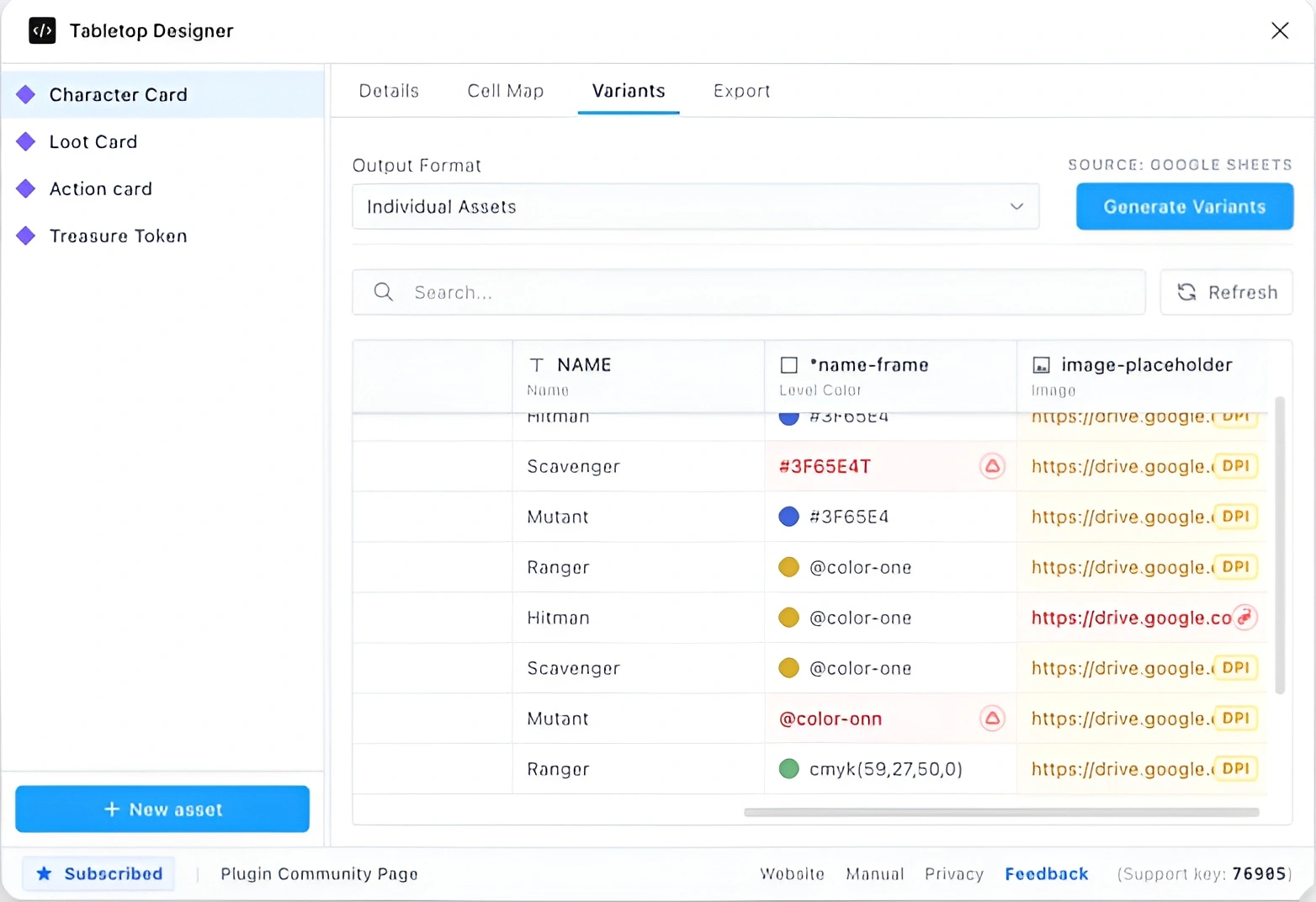
The **Variants** tab acts as your production dashboard. Sync data from your source to generate a list of every item in your deck.
Validation & Deck Building
- Pre-Flight Check: The plugin automatically validates image links and variant names, flagging any missing assets before you export.
- Quantities (QTY): Set a quantity for each row. The export engine will automatically multiply the frames to match your deck composition.
- DPI Validation: Tabletop Designer checks the effective DPI of your nested images to ensure your final prints aren't blurry.
Production Export
Our export engine uses a **Hybrid Strategy** to balance speed and professional quality. Depending on your settings, processing happens either locally in your browser or on our secure Cloud API.
Local Export (Fast)
Standard PNG and JPEG exports in sRGB are processed entirely on your machine. This is ideal for quick prototyping and sharing.
Cloud Export (Pro)
Advanced formats like PDF and TIFF, or CMYK color conversion, are offloaded to our high-performance Cloud API using the Sharp processing engine.
Available Settings
| Setting | Available Options |
|---|---|
| Format | PNG, JPEG, PDF (Multi-page), TIFF |
| Resolution | 72, 150, 300, 600 DPI |
| Color Space | sRGB (Web), CMYK (Print) |
Supported ICC Profiles
Tabletop Designer supports professional color management via industry-standard ICC profiles. These ensure your colors look consistent from screen to press. Choose the profile specified by your manufacturing partner.
CMYK (Print Industry Standards)
European Standards (ECI)
- FOGRA39 (Coated) The industry standard for tabletop games in China & Europe.
- ISO Coated v2 (300% TAC) FOGRA39 optimized with a 300% total ink limit.
- PSO Coated v3 (FOGRA51) Modern successor to FOGRA39 for OBA papers.
- PSO Uncoated v3 (FOGRA52) Best for rulebooks and uncoated card stocks.
North American Standards
- GRACoL 2013 (Coated) The professional standard for North American printing.
- US Web Coated (SWOP) v2 Standard for US magazine and web-press printing.
- US Sheetfed Coated v2 Common for North American sheet-fed presses.
Regional & Specialized
- Japan Color 2001 Coated The standard for professional printing in Japan.
- Coated FOGRA27 Legacy European coated standard.
- The Game Crafter (Soft-Proof) Calibration profile for TGC's specific digital presses.
RGB (Digital & Screen Standards)
- sRGB (Web Standard) Best for web, mobile displays, and general digital viewing.
- Display P3 Modern Apple and mobile display standard with wider gamut.
- Adobe RGB (1998) Professional photography and high-end graphic design standard.
- ProPhoto RGB Ultra-wide gamut for high-end color retouching workflows.
- Apple RGB Legacy Apple display standard.
Troubleshooting
Memory Constraints ↓
Figma plugins share a 2GB memory limit with the rest of your open files. If you are syncing a very large deck (500+ cards) with high-res images, try breaking the deck into multiple Asset containers to maintain performance.
Google Sheets Unauthorized ↓
Ensure your sheet is set to **"Anyone with the link can view"** and is **"Published to the web"** as a CSV. Private sheets cannot be proxied by our server.